Most Jotform thank-you pages show the same coupon to everyone. That's fine for lead magnets, but it breaks for anything single-use. With Coupon Carrier's Jotform integration, each submission opens a unique voucher tied to the submitter's email. One use, then it's done. No POS integration needed.
You put a coupon code on your Jotform thank-you page. Person #1 sees it. So does person #500. They're looking at the exact same code.
Someone screenshots it. Drops it in a group chat. Now 200 people have your "exclusive" offer, and you have no way to tell who actually submitted the form versus who just got the code forwarded.
There's no single-use enforcement, and staff have no way to check whether a code has already been used. You can't tie a specific form submission back to a specific redemption. If the same thank-you page coupon is shown to every submitter, it's not a single-use offer. It's a public code with extra steps.
Anyone can reuse a static thank-you page coupon. A single-use voucher works once.
Instead of showing a static code, the Jotform thank-you page or redirect URL sends the submitter to Coupon Carrier. The URL includes their email address. Coupon Carrier uses that email to look up or assign a unique Redeem Link voucher.
The submitter sees a hosted voucher page with their unique code. If the voucher includes a QR code, staff can scan it with the web-based scanner on any phone. If not, they tap Mark as Used on the page. Either way, the voucher stops working after one use.
The full setup is covered on the Jotform integration page. This post covers both connection methods and the step-by-step config, plus the use cases where the flow fits best.
If you need SMS delivery instead of a thank-you page or redirect, use the same Redeem Link logic with Zapier and Twilio. This walkthrough covers the exact setup: send single-use voucher links via SMS with Zapier.
There are two ways to connect the form to the voucher. Both use the same Redeem Link. The difference is how the submitter gets to it.
After submission, the Jotform thank-you page displays a "Claim your voucher" link or button. That link is your Coupon Carrier Redeem Link with the submitter's email appended. When the user clicks it, their unique voucher page opens.
This option gives you control over the thank-you page copy. You can add instructions, branding, or a delay before the user clicks through. It works well when you want the form submission to feel complete before the voucher appears.

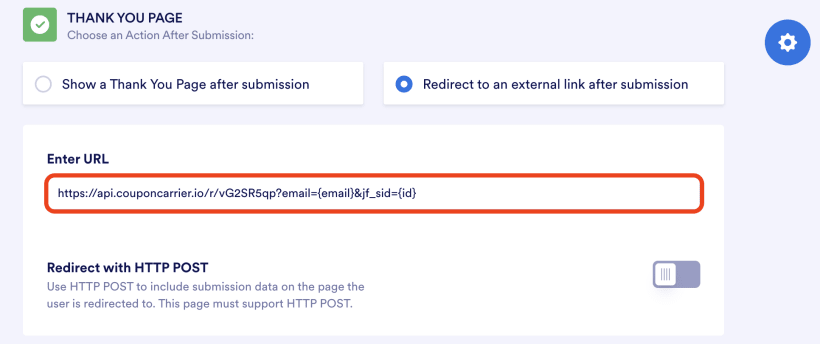
Jotform can redirect the user to an external URL immediately after submission. Set the redirect URL to your Coupon Carrier Redeem Link. The submitter lands on their voucher page automatically, with no extra click.
This is the faster option. It works well for in-person setups where a tablet or kiosk runs the form and you want the voucher to appear on screen right away.
Requires a Jotform Email field
Coupon Carrier uses the submitted email address to identify the recipient and assign their voucher. Your form needs at least one Email field for this to work. If there is no Email field, the Redeem Link will not be able to look up the correct voucher.
This is the one hard constraint. The email address is how Coupon Carrier matches a form submission to a specific voucher. Other fields (name, phone, custom questions) are optional and don't affect the voucher flow.
In the Coupon Carrier dashboard, create a new configuration and select Redeem Link as the delivery method. Choose the code list you want to assign vouchers from.
In the Redeem Link settings, pick Jotform as the service. This tells Coupon Carrier to expect the email parameter in the format Jotform uses.
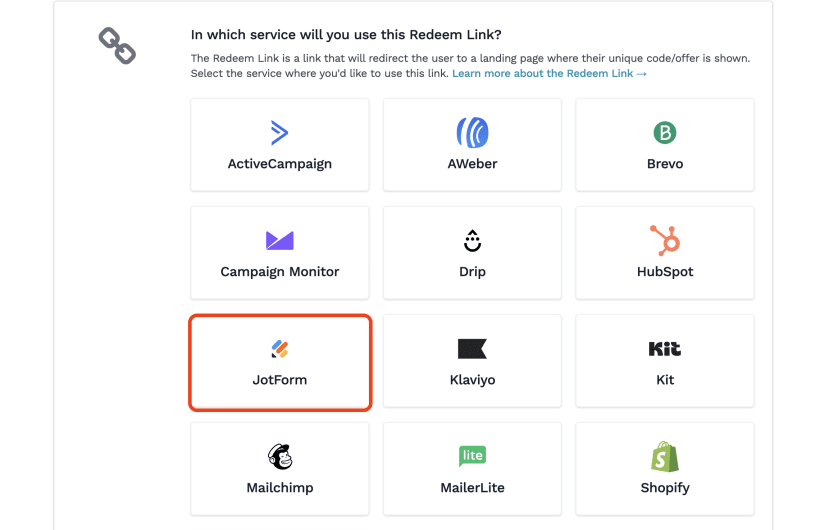
Coupon Carrier generates a URL you can use directly. Copy it. This is the link you'll add to your Jotform setup.

Paste the Redeem Link into your Jotform. If you're using Option A, add it as a link on the thank-you page. If you're using Option B, paste it into the redirect URL field in your form settings.
Submit the form yourself using a real email address. Confirm the voucher page opens, shows a unique code, and that the code appears in your Coupon Carrier dashboard.
The submitter sees a hosted voucher page. It can display a code, a QR code, a CTA, and your branding. The page is tied to their email, so if they open the same link again, they see the same voucher. It doesn't generate a new one.
The voucher is still single-use. Even though the page is accessible by link, once it's been redeemed (by Mark as Used or QR scan), it shows a "used" status to anyone who opens it. Screenshots don't help.
Want to see what this looks like? Try a demo voucher to walk through the full flow.
Event signup rewards. Collect RSVPs through a Jotform, then show each attendee a unique voucher they redeem at the door.
Restaurant and bar offers. Put a signup form on a tablet or your website. Each submission delivers a one-time drink or discount.
In-store QR campaigns. Print a QR code that opens a Jotform. Customers scan, fill out the form, and see a voucher on their phone right away.
Car wash first-visit promos. Offer a free or discounted wash to people who sign up on-site. The voucher works once, so the same voucher can't be used for a second free wash.
Agency-built funnels. If you build lead capture flows for clients, this gives you tracked, single-use voucher delivery without custom code.
Jotform gets the voucher in front of the submitter. On the redemption side, Coupon Carrier gives you two options.
Mark as Used. The customer shows their voucher page. Staff tap "Mark as Used" on the hosted page. The voucher is permanently invalidated. This is the simplest option for small teams or low-traffic setups.
QR scanning. The voucher page includes a QR code. Staff scan it with the web-based scanner on their own phone. This is faster when there's a queue or when the customer's phone is across a counter.
Either way, the voucher can only be redeemed once. After that, anyone who opens the link sees a "used" status.
Try a demo voucher to see what the voucher page looks like and how Mark as Used works.
For the full integration details, see the Jotform integration page.